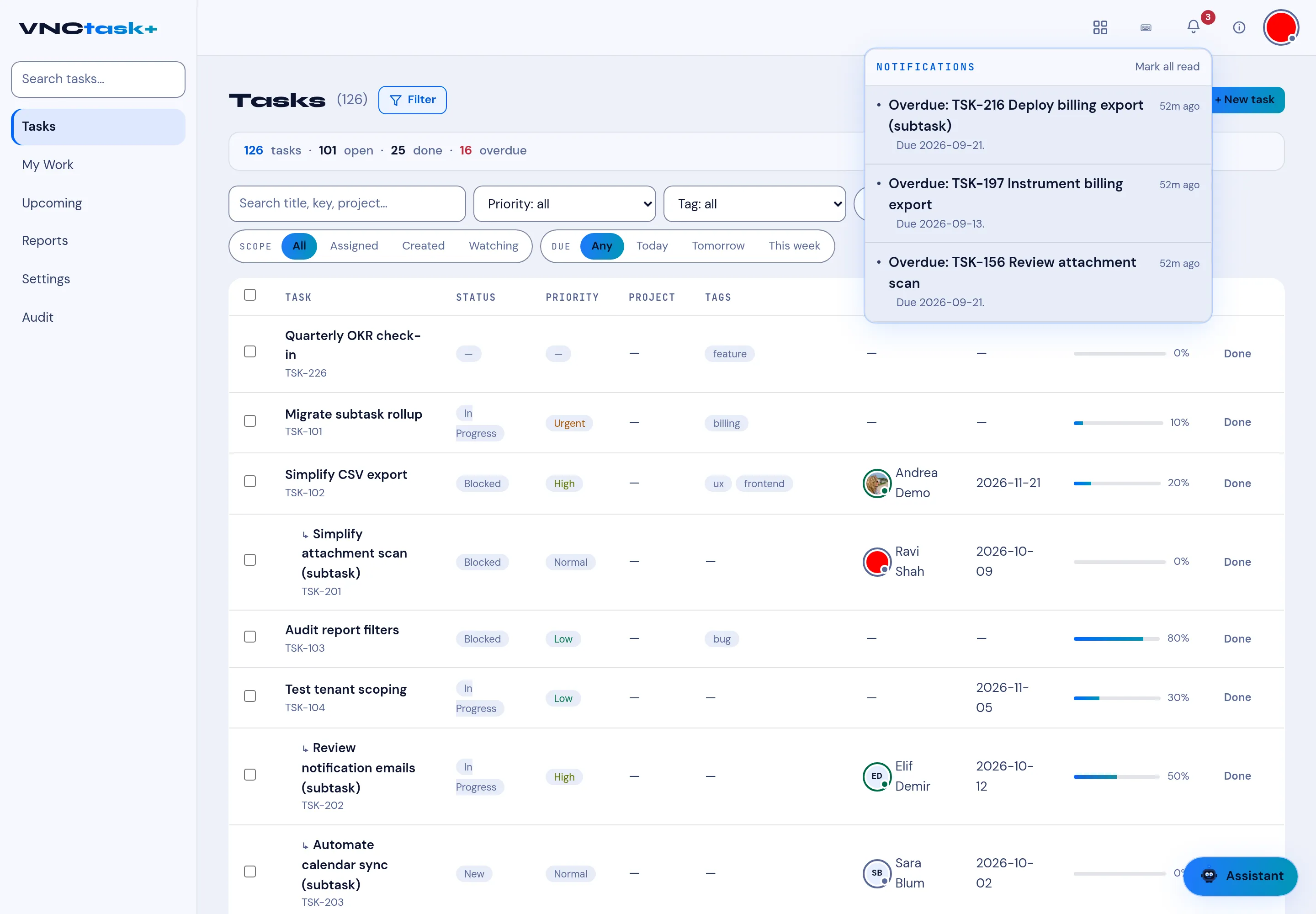
Notifications
Every product shows the same bell in the top-right, with a count of unread items. Open it to see the NOTIFICATIONS panel.
Notifications reach you in three places: this bell, a cross-product Notification Center under your account, and the optional desktop app that raises native notifications on your computer — see Notifications on your desktop.
What it collects
Section titled “What it collects”Notifications are events raised by the products you use — a task falling overdue, a new chat or channel message, an approval waiting on you, or a change to something you follow. Each entry names the record, the reason and how long ago it happened.
In the panel you can select an entry to jump straight to the record, or Mark all read to clear the count.
How they are managed
Section titled “How they are managed”- Notifications are per product: each product decides what it notifies you about, and each offers its own settings.
- VNCmail+ has a Notifications section in Settings — see Settings.
- VNCchat+ has notification options per room — see Configure notifications.
- Setting your presence to Do not disturb suppresses delivery — see Your account and presence.