Storage, sync spaces and sharing
VNCfiles keeps your files in folders, offers views to find them, and can share them. Files carry a classification and tags so they stay governed.
| View | Shows |
|---|---|
| All files | Everything you can see. |
| Recents | Recently touched. |
| Favourites | The ones you starred. |
| Sharing | Shared by you, or shared with you. |
| Synced files | Files inside your sync-space folders. |
Storage filter
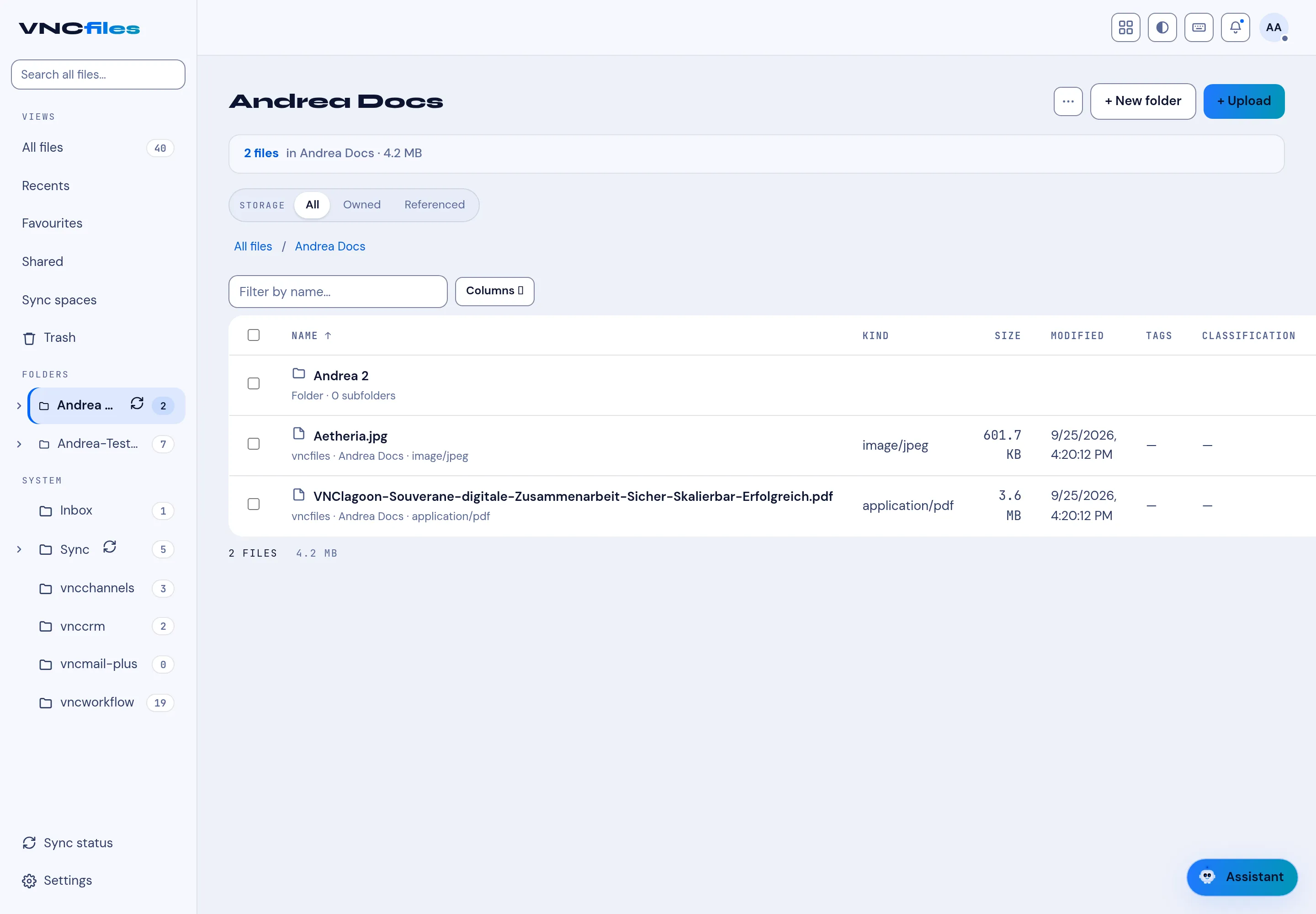
Section titled “Storage filter”Inside a folder, Storage switches between All, Owned (you own the file) and Referenced (the file lives elsewhere but is referenced here).
Files and folders
Section titled “Files and folders”- + New folder creates a folder; + Upload (or drag-and-drop) adds files.
- Each file shows Kind, Size, Modified, Tags and Classification.
- Filter by name and Columns control the list.
Corporate or private
Section titled “Corporate or private”Every file and folder is either corporate (governed by the folder’s access rules — anyone with access to the folder sees it) or private (only you, an administrator, or someone you explicitly shared it with). Choose Private when you add a folder or upload; flip it later from the row menu (Make private / Make corporate). A private folder hides everything inside it.
App-owned folders
Section titled “App-owned folders”Folders under Applications (Transfers, and one per product) belong to the product that fills them. You can browse and download, but you can’t upload into them — that is why the folder header says Managed by … and the upload buttons are hidden.
Why classification matters
Section titled “Why classification matters”Tags and classification travel with the file, so a document can be found and governed no matter which view or folder you reach it from.