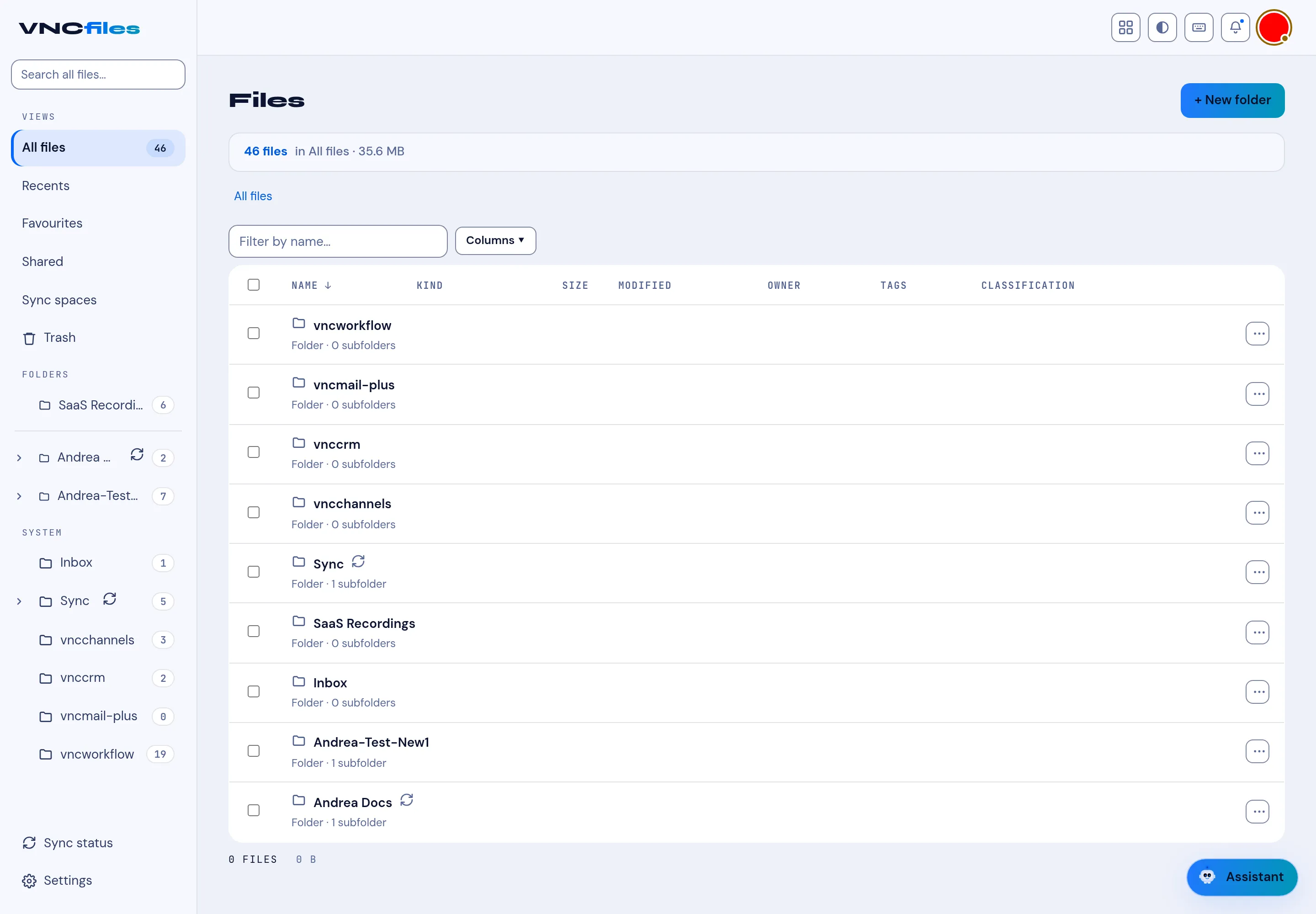
Filter and sort the file list
All files lists everything you can see, with folders first. Filter it down when the list gets long.
-
Open VNCfiles and select All files.
-
Type in Filter by name… — the list narrows as you type. The header shows the count and total size (for example 46 files in All files · 35.6 MB). The filter matches the file’s content as well as its name — including the text of scanned PDFs and images, which VNCfiles reads with OCR on upload (see Upload a file).
-
Open Filters ▾ for quick filters, which can be combined:
- Kind — Image / PDF / Word / Excel / Text / Video / Audio / Archive;
- Modified — Today / last 7 days / last 30 days / this year;
- Owner — anyone / only me;
- Classification — public / internal / confidential / restricted;
- Tag — an exact tag name.
The button shows how many filters are active; Clear filters resets them.
-
Toggle ★ Favourites to show only things you starred, and the ⟳ button to refresh the current list.
-
Select Columns to choose which columns show. The available columns are NAME, KIND, SIZE, MODIFIED, OWNER, TAGS and CLASSIFICATION.
-
Select the NAME header (or another column header) to sort by it; the arrow shows the direction.
-
Use the sidebar views to switch the set instead of filtering: Recents, Favourites, Sharing and Synced files.
Export: Export CSV downloads the current list (or just the selected rows).
Result
Section titled “Result”The list shows only matching items, in the order and columns you chose.