Notifications on your desktop
Notifications reach you in three places, all from the same private rail:
| Where | What it is | Best for |
|---|---|---|
| In the product | the app’s own bell | staying in context — the entry opens the record |
| Notification Center | a cross-product feed under your account | seeing everything at a glance |
| Desktop app | a native OS notification and a tray icon | knowing when you are not looking at a tab |
The desktop app is a small tray program for Windows, macOS and Linux. Notifications travel over your organisation’s own push server — no commercial push provider is in the path — and each device holds a read-only credential for your notifications only.
It covers VNCchat+, VNCmail+, VNCchannels+, VNCcontacts+, VNCtask+, VNCfiles, VNCproject+, VNCcrm and the VNCai digest.
Install
Section titled “Install”-
Open the Notification Center (your account, top-right) and select Enable desktop notifications to reach the download for your device.
-
Install for your platform:
Platform How macOS Open the -mac.zip, drag the app to Applications, open it.Windows Run the Setup.exeand follow the installer.Linux Make the .AppImageexecutable and run it, or install the.deb.
Turn it on
Section titled “Turn it on”- Start the app — a tray icon appears.
- Open the tray menu and select Open settings….
- Select Sign in and sign in with your normal VNClagoon account.
- It shows Connected. Notifications are on by default.
What you control
Section titled “What you control”| Setting | Default | What it does |
|---|---|---|
| Show notification text | On | Off shows only New notification — useful on a shared screen. |
| Play sound | On | Uses your system notification sound. |
| Pause notifications (Do Not Disturb) | Off | Silences the tray; the product bells and the Notification Center keep working. |
| Unread badge | auto | The tray shows the count; Mark all as read resets it. |
The Settings window also has Send a test notification and Reconnect. Closing the window does not quit the app — it keeps running in the tray. Quit from the tray to stop notifications.
The Notification Center
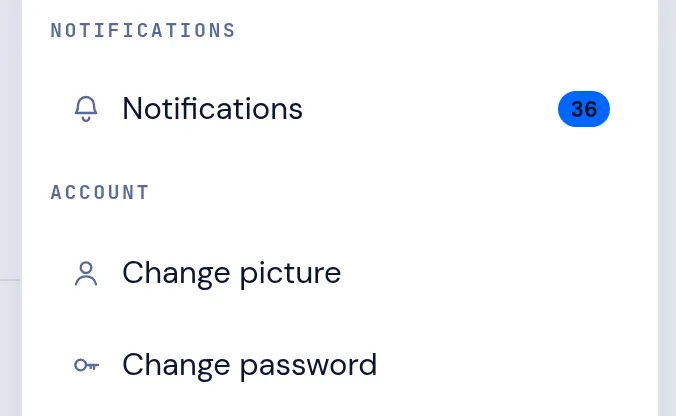
Section titled “The Notification Center”Under your account (top-right) there is a cross-product Notification Center:
- All / per-app filters, once you have notifications from more than one app.
- Mark all read clears the unread state and the badge.
- Select a row to open the record in its product.
- Enable desktop notifications opens the download for this device.
Per-product preferences
Section titled “Per-product preferences”Your account settings (top-right → My account & settings) keep your product preferences centrally, per user. In the Notifications pane, for each product: Enable notifications (master, on), In-app (on — this also drives the desktop push) and Email (off).
Each product you are subscribed to also has its own pane — for example VNCmail+ (signature, out of office, email and calendar notifications, working hours) and VNCchat+ (read receipts, typing indicator, message retention, call ringtone). A pane appears only for products you are subscribed to.
On a phone
Section titled “On a phone”For a phone, your organisation’s push server can feed the push app on your device instead; ask your administrator for the topic and credential.
If something isn’t working
Section titled “If something isn’t working”| Symptom | Fix |
|---|---|
| Nothing at all | Signed in and Connected? Tray → Reconnect. Check Do Not Disturb is off, the master toggle is on, and your OS Focus mode is off. |
| Nothing after Quit | Quit stops the app — start it again to resume. |
| One app is silent | Check that product’s In-app toggle, and that the channel is not muted in the product. |
| No sound | Tray Play sound, and your OS notification settings. |
| Testing | Settings → Send a test notification. Works? The app is fine. Doesn’t? Sign out and in again. |
| Shows only New notification | Turn on Show notification text. |
Privacy
Section titled “Privacy”- Per user — each device holds a read-only credential for your notifications only.
- Self-hosted — your own push server; the client talks only to your organisation’s environment.
- No commercial push provider in the content path.