Your account and presence
Your account
Section titled “Your account”You have one identity in VNClagoon+, owned by VNCdirectory+ and delivered to every product through single sign-on. You sign in once — see Sign in to VNClagoon+ — and the same name, avatar, units and roles follow you into VNCchat+, VNCmail+, VNCcrm and the rest.
Your profile comes from the directory; things you set yourself — your picture and your status — live with the account and travel across the products. Open the account menu (top-right) to Change picture, Change password, Language, Light mode or Sign out. The same menu holds your presence and the Notifications entry — see Notifications on your desktop.
Your account settings
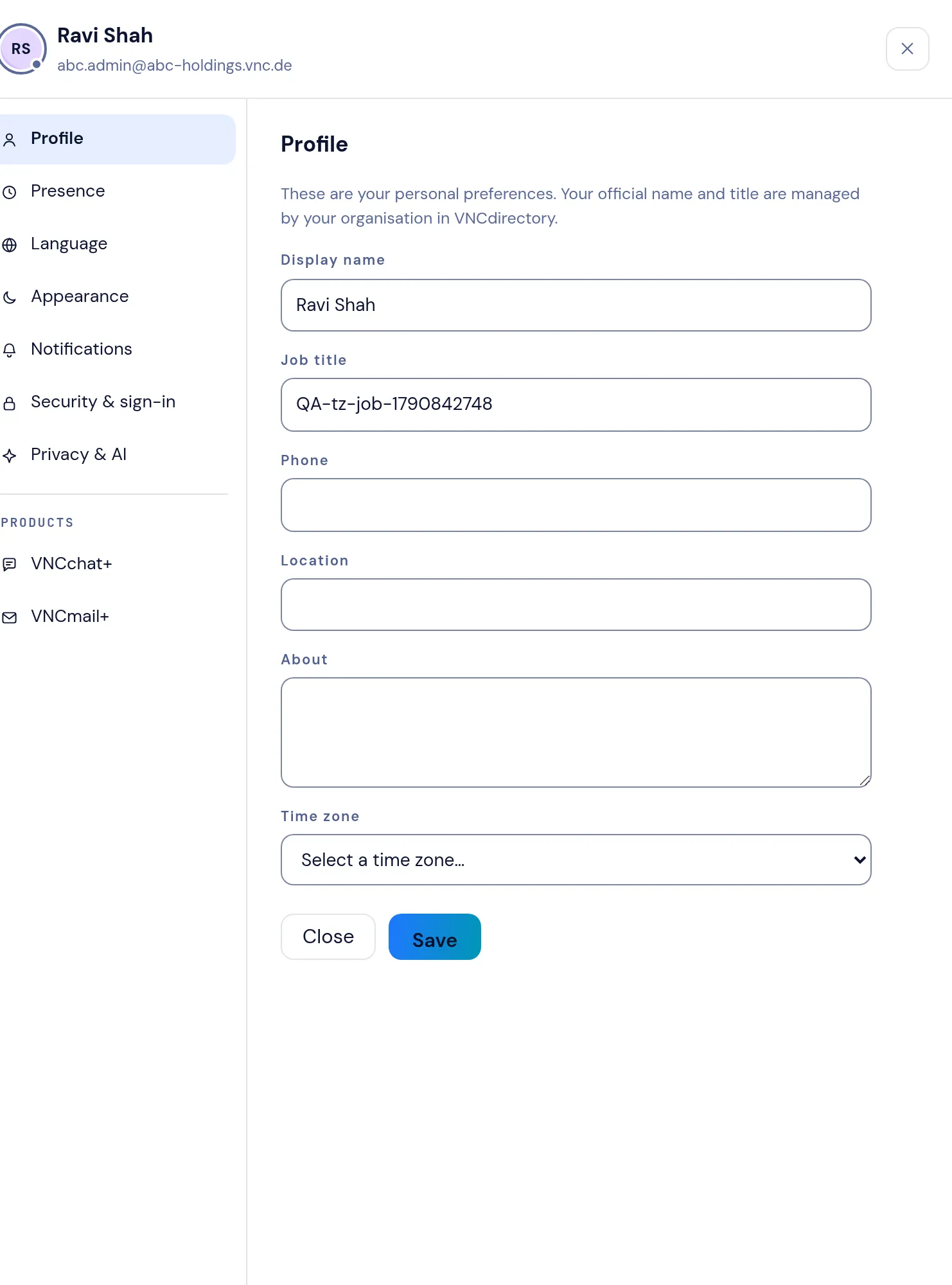
Section titled “Your account settings”The account menu’s My account & settings opens a settings drawer — the same one in every product. Down the left:
- Profile — display name, job title, phone, location, about and time zone (your official name and title come from VNCdirectory+).
- Presence, Language and Appearance.
- Notifications — the master switches and per-product preferences (more).
- Security & sign-in — change your password and manage how you sign in.
- Privacy & AI.
Under Products, each product you are subscribed to has its own pane.
Language
Section titled “Language”Your language is a setting on your account, stored centrally in VNCdirectory+, so it follows you across the products. Change it from the top-bar Language control, or from the avatar menu → Language, or in the settings drawer under Language.
The suite offers English, German, French, Italian and Spanish. The product interfaces are translated into all five; a few account areas — the avatar menu and settings, and any labels a product supplies for its own settings — are currently available in English and German only, so they appear in English when you choose one of the other languages.
Presence
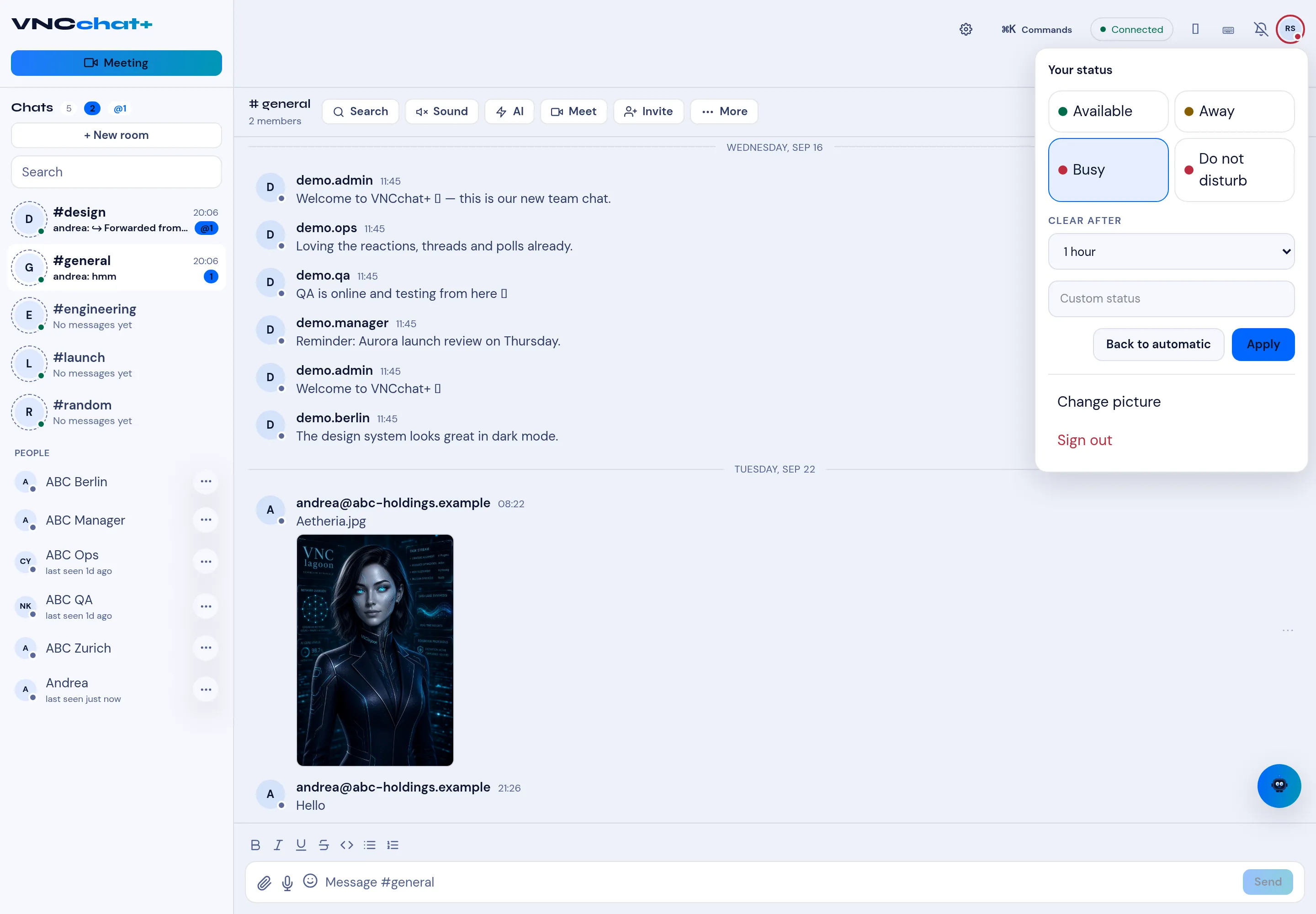
Section titled “Presence”Presence is your availability, shown next to your name wherever people see you — the chat and channel member lists, contacts, and anywhere a person is listed. The standard states are:
| State | Meaning |
|---|---|
| Available | You are reachable. |
| Away | You are not at your desk (often set automatically when idle). |
| Busy | Reachable, but treat it as a do-not-interrupt signal. |
| Do not disturb | Suppress notifications. |
Presence is shown as a coloured dot and, in conversation lists, as last seen (for example last seen 1d ago).
Setting your status
Section titled “Setting your status”- Open the avatar menu (top-right) and pick a state.
- Choose Clear after — Never, 30 min, 1 hour or 4 hours — so a manual state does not stick forever.
- Add a custom status line if you want a note to appear with it.
- Select Apply. Back to automatic returns you to auto-away.
Because presence is part of the account, changing it in one product is what others see in all of them.